9 Cybersecurity Tips for Freelancers and Remote Workers
Learn how to safeguard your online activities, protect sensitive data, and maintain robust security practices while working from home or anywhere else.

.png)
.avif)
Remote work is a wonderful thing — we're clearly fans of it here at Upwork — but the practice can come with some risk. As you begin (or continue) working remotely, it’s important to stay alert and aware of common internet attacks. You’ll also want to learn how to secure your systems and keep data safe from prying eyes.
Luckily, you can take several steps right now to improve your digital security. Let’s dig into what you need to know.
- Why it's important to secure your digital workspace
- 9 cybersecurity tips for remote workers
- Additional resources for cybersecurity
- Seek help from security professionals when needed
Why it's important to secure your digital workspace
Between 2018 and 2022, the U.S. Internet Crime Complaint Center (IC3) received 3.26 million complaints related to internet scams. These scams resulted in the loss of $27.6 billion dollars — and that's just the ones that were reported.
Securing your digital workspace means securing your data from criminals.
9 cybersecurity tips for remote workers
From avoiding phishing scams to securing your home network, the top cybersecurity basics and best practices will help you focus on necessary actions to minimize risk.
1. Use strong and unique passwords
Using strong, complex passwords is a good first line of defense against cybersecurity incidents. Make sure to never reuse a password, whether for your personal devices and apps or for a client's systems.
Password manager apps — like LastPass, 1Password, and Bitwarden — make coming up with complex, unique passwords an easy process. By remembering one master password that grants you access to the app, you can easily find and use saved, strong passwords for all of your accounts.
I decided to install Proton Pass on my phone and use it to manage all of my personal passwords. But I store all of my work passwords separately in a Dashlane app that's only installed on my (also password-protected) computer. This way, if I ever lose my phone, I won't run the risk of compromising any of my clients' systems and accounts.
2. Enable two-factor authentication
Two-factor authentication (2FA) adds an additional layer of security onto your passwords. (You might also hear this referred to as "multi-factor authentication," or MFA.)
When you have 2FA enabled, you'll need to provide a second form of verification in addition to a password each time you log into an account.
This second form of verification typically takes the form of:
- A code sent via text message or email
- A code generated by an authenticator app
- A biometric input, like a fingerprint
- A physical key or USB drive that is inserted into your computer or phone
Text message verification is very common, but it's not the most secure option due to its vulnerabilities. It's all too easy to lose your phone — or even experience a SIM swap attack, where cybercriminals take over your phone number.
Using biometrics, a physical device like the YubiKey, or an app like Google Authenticator is preferred by many security professionals.
Your password app of choice may even generate 2FA codes for you — be sure to check out all of its features before signing up for an additional authentication service.
3. Secure your home network
When working remotely, you may need to connect to client systems and applications. Do so only over a wired or secure wireless internet connection. Many free public Wi-Fi networks, such as those found in coffee shops and airports, are not secure, so you'll want to know how to tell the difference.
Secure wireless networks use protocols called "Wi-Fi protected access" (WPA). If a network says it's using WPA2 or WPA3, the protocols are up to date. These protocols must be configured on the router level, not on your device — which is why they apply to wireless, not wired, internet.
WPA2 and WPA3 protocols protect your network activity and make it harder for cybercriminals to intercept or spy on what you're doing. The protocols also help to block your computer from malware attacks.
You'll want to look for these protocol acronyms and a lock icon each time you connect to a new network. Here you can see networks that my Apple devices have connected to in the past:
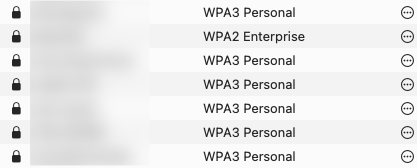
All of the secured networks — the names of which I've blurred as they belong to me, my friends, and family — are protected with security protocols.
Always make sure you're connecting to the right wireless network. Some cyberattacks involve bad actors setting up fake networks that mimic real ones.
For example, "cafe-I2" and "cafe-l2" look very similar at first glance, but the first one uses a capital I, while the other uses a lowercase L.
4. Use a virtual private network (VPN)
VPN programs create a secure tunnel through which your internet activity can pass, further shielding data from cybercriminals.
Using a VPN can make accessing a public, unsecured network a little safer for situations where you absolutely have to use the Wi-Fi. Anyone trying to access your device or data has to break through the VPN's encryption.
NordVPN, Proton, and Surfshark are three options that are often well-reviewed by outlets like CNET.
You can change the location that your internet traffic appears to be originating from, too. Here, you can see that I've connected my VPN to a secure Proton server in New York and have been assigned a corresponding IP address:
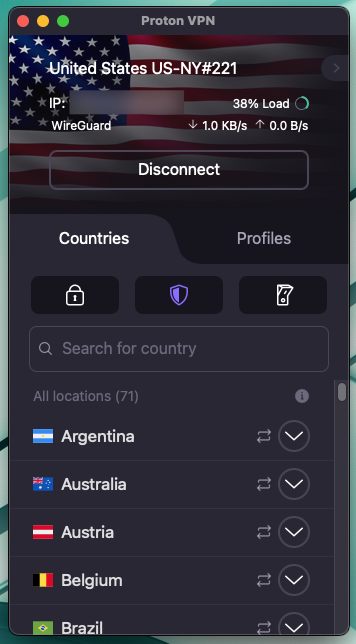
Now Google thinks that I'm searching for local shops in New York, when I'm actually physically in the Boston area.
Many VPNs will work on your phone, too, meaning that you can maintain a secure connection while answering client messages on the go.
5. Turn on a firewall
Turning on your device's firewall can also help to protect your personal and professional data from cybercriminals.
Firewalls block other computers from accessing yours — unless you've authorized them to do so. Some firewalls, like Microsoft Defender and the ones native to Mac computers, also allow you to block incoming connections from specific apps and services.
Many modems and routers have firewalls, too.
6. Install reliable antivirus software
Even with several layers of security, you’ll want to have a reliable antivirus program installed on your computer. This way, you can quickly find, isolate, and remove any malware or viruses in the event one does make it onto your device.
Several well-reviewed free antivirus products are available on the market today, including Microsoft Defender and Avast.
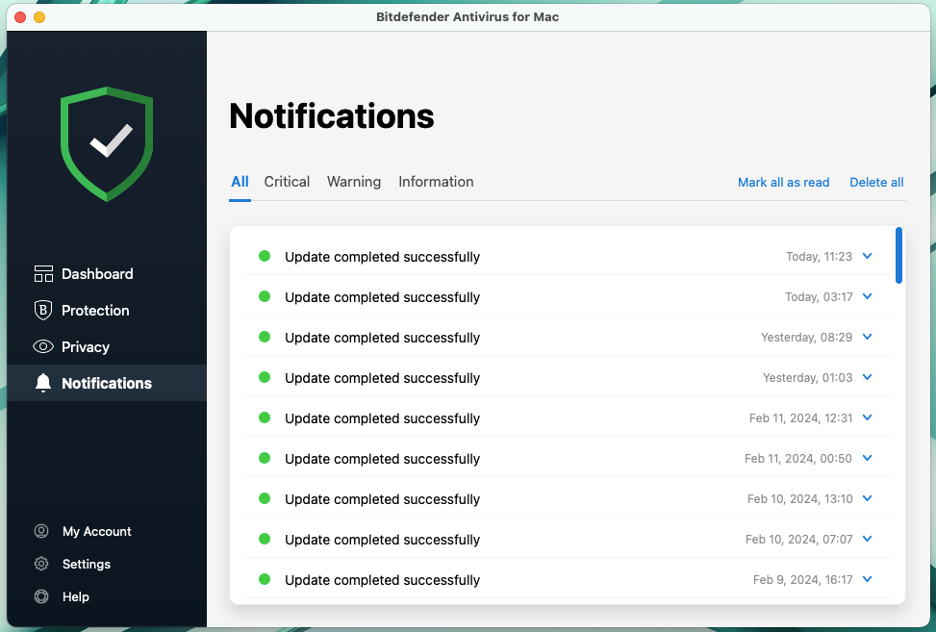
These tools typically automatically update and run in the background, alerting you only when an issue needs to be resolved. Here you can see how Bitdefender breaks down its notifications:
7. Regularly update your operating system and apps
You'll also want to keep your work devices regularly updated — both the operating systems and individual apps.
Software updates often include essential security updates and patches that protect your systems from cyberattacks, including newly developed viruses and ransomware. If you wait to update your devices, you may be at risk of having your systems compromised.
The easiest way to do this is to configure your devices so that they automatically update. You can enable automatic updates in the system preferences or system settings on both Windows and Mac computers.
8. Use secure cloud storage services
Storing your work files in secure cloud storage services can offer benefits versus relying on a physical solid state or hard drive. If you store all of your files on a physical drive, and then lose that drive, your data may be at risk. Plus, you’ll be without the documents you need to do your work!
By using a cloud service that’s meant for business — like Google Workspace — you can easily share files and also manage access permissions. If your clients or collaborators change, adding and removing people from a shared file is easy.
Plus, you can easily access your files again if your computer is damaged or broken and you have to use a different device.
9. Beware of phishing attacks
Unfortunately, cybercriminals can still make their way onto your computer, even with firewalls and passwords in place. One common way this happens is through phishing emails and messages.
Before clicking on any link (or attachment) in emails, texts, or direct messages, make sure that:
- You know and trust the sender
- You were expecting this message
- The message doesn't contain any suspicious elements, like misspelled company names or outdated logos
- The message doesn't require you to provide sensitive information upfront, like a passport number
Cybercriminals can do a very good job of making phishing emails that look legitimate, though. Make a few other checks on messages that look OK to the naked eye.
- If you're reading the message on a computer, place your mouse over the link — without clicking — and look at the URL that appears in the lower corner of your browser window. Is it a URL you recognize? If not, don’t click.
- Reach out to people or institutions whom you know and confirm that they're the real sender of a message.
- Click on a sender's name to see the email address they used, and be wary of any misspellings or subdomains.
Here's an example of a phishing email that landed in my spam folder. It purports to be from UPS — but I thought it looked different from other UPS emails I've received in the past.
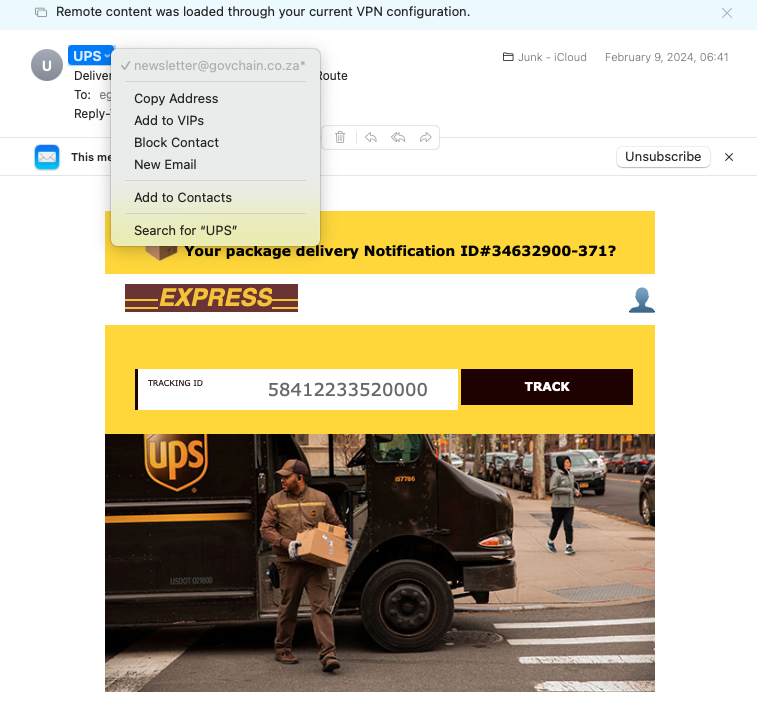
A quick check of the sending domain revealed that it's not from UPS—the company’s website lists out all of the domains that UPS uses when sending emails, and they all include “ups.com.” This means that I shouldn't click on anything in the message.
Additional resources for cybersecurity
You don't need a degree in cybersecurity to learn how to stay safe online and while working remotely. Great resources like the ones below can help.
- The National Cybersecurity Alliance
- Security.org
- The Kaspersky blog
- Tech-focused publications like ZDNET
Many countries also have their own government agencies that offer security tips and resources for remote workers.
Seek help from security professionals when needed
If you're having trouble configuring your network or suspect that you’ve been the victim of a cyberattack, security professionals are available to help.
Don't be embarrassed to tell a professional that your system isn't up to par or that you may have been compromised. Security consultants have seen it all and they want to help you work safely now and in the future.
You can even hire cybersecurity professionals who can help right here on Upwork!
Work securely with clients around the world
While all remote work requires attention to the security steps in this guide, you can make the process even easier with Upwork. Our platform lets you find clients, send proposals, and start contracts without ever leaving the Upwork site. All it takes is an Upwork account — sign up or log in today to find your next project.

.avif)

Author Spotlight

Emily Gertenbach is a B2B writer who creates SEO content for humans, not just algorithms. As a former news correspondent, she loves digging into research and breaking down technical topics. She specializes in helping independent marketing professionals and martech SaaS companies connect with their ideal business clients through organic search.

Latest articles